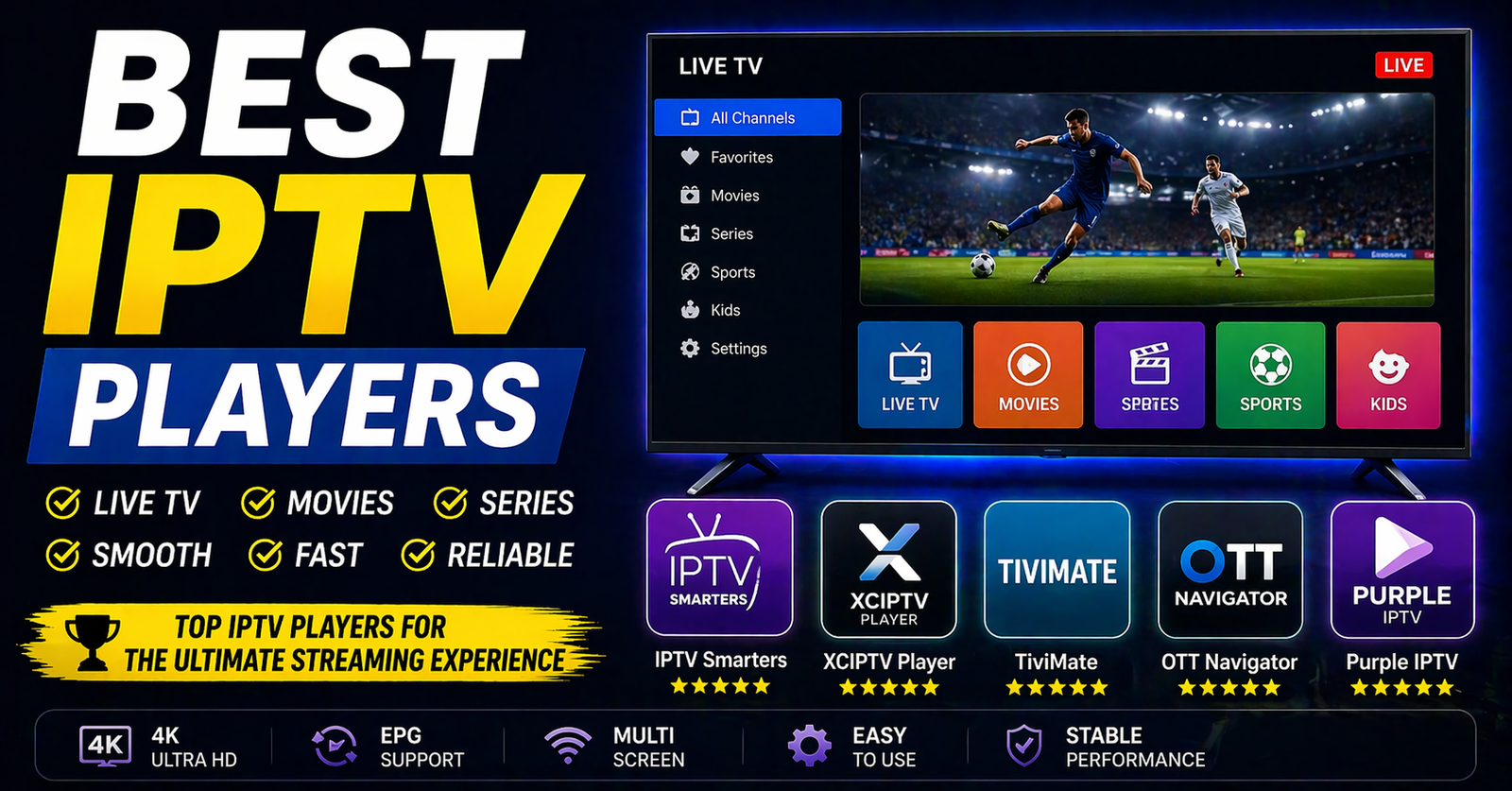

Let’s be honest. You didn’t spend money on that big-screen TV just to stare at a spinning circle when the moment you’ve been waiting for finally arrives. Whether it’s a championship match, a season finale, or a film you’ve been looking forward to all month — the experience lives or dies on one thing: the player you’re using and how your home is set up to support it.
Why Your Choice of Player Changes Everything
Most people assume their internet is the problem. Sometimes it is. But more often, the culprit is sitting right in their app drawer — a poorly optimized, rarely updated, or simply wrong player for their device.
The best IPTV players are not all built the same. Some are designed for Android-heavy ecosystems. Others shine on Firestick or Smart TVs. A few are powerful on desktop but clunky the moment you put them on a television. Picking the right one is step one — and it matters more than most guides admit.
The Night I Learned This the Hard Way
Two years ago, I was watching a major boxing event with friends. I had everything set up — or so I thought. The pre-fight coverage was buttery smooth. The moment the main event started and the crowd noise peaked, the stream locked up. Pixelated faces. Frozen canvas. A room full of disappointed people.
The fix turned out to be embarrassingly simple: I was using a default media player that couldn’t handle high-bitrate live streams efficiently. The moment I switched to one of the genuinely best IPTV players — one built specifically for adaptive bitrate streaming — the picture came back clean within seconds. I’ve never made that mistake again.
That’s the experience behind this guide.
The Invisible Enemy: Why Streams Choke at the Worst Moments
Think of your home network like a water pipe. When one person is streaming in the living room, someone else is on a video call upstairs, and another device is downloading updates in the background — your pipe doesn’t get wider. The pressure drops. Your stream gets what’s left.
Now layer in the fact that most default players request bandwidth in inefficient chunks — not a continuous, controlled flow. The best IPTV players handle this differently. They pre-buffer intelligently, adjust quality in real time, and don’t compete wastefully with other devices on your network.
On the Wi-Fi side: the 2.4GHz band is like a crowded motorway at rush hour. Every nearby neighbor’s network, your microwave, your wireless keyboard — all of them are in the same lane. The 5GHz band is the open expressway. Getting your streaming device onto the 5GHz network alone can eliminate 60–70% of the stuttering problems people blame on “bad streams.”
What Makes the Best IPTV Players Actually Good
Here’s where it gets practical. When evaluating any player, there are five things worth looking at:
1. Codec Support The best IPTV players support H.264 and H.265 (HEVC) natively. H.265 delivers the same picture quality at nearly half the file size — meaning less bandwidth demand and smoother playback on tighter connections.
2. EPG (Electronic Program Guide) Integration A guide built into the player means less switching between apps. Look for players that let you load an external EPG URL.
3. External Player Compatibility Some of the best IPTV players are designed to pass streams to third-party decoders. This is especially useful on devices where hardware decoding isn’t fully supported natively.
4. UI Responsiveness A slow, laggy interface is a warning sign. If the menu stutters, the stream will too.
5. Multi-Screen and Multi-Device Sync If you’re managing access for multiple households or a large family, understanding how an UK IPTV Reseller structures accounts can help you avoid login conflicts across devices.
Optimal Viewing Settings for Live Sports & Action Content
This is where most guides stop short. Knowing your player is one thing. Knowing how to configure your TV and audio for the content is another.
Contrast Ratio and Black Crush
Live sports and action content are brutal on poorly calibrated screens. “Black crush” is what happens when your TV’s contrast setting is too aggressive — dark jerseys blend into dark backgrounds, shadow detail disappears, and fast-moving scenes look like they’re being broadcast through a fog machine.
On most modern TVs, go into picture settings and:
- Set contrast to no higher than 85 (not 100)
- Turn off “Dynamic Contrast” or “Auto Brightness” — these features constantly adjust the picture mid-scene, which is visually jarring during fast cuts
- Set sharpness to between 20–40. Higher sharpness on compressed streams creates a harsh, artificial edge around moving subjects
The best IPTV players deliver the picture your TV receives — what your TV does with it after that is up to your calibration.
Motion Handling
Most Smart TVs have a motion smoothing feature (Samsung calls it “Auto Motion Plus,” LG calls it “TruMotion”). For sports, a low motion setting (not maximum) reduces blur without creating the notorious “soap opera effect” that makes everything look like a daytime drama filmed in a living room.
The Setup Checklist Before Any Major Stream
Don’t wing it on the night. Run through this before you sit down.
One Week Out:
- Update your player app to the latest version
- Clear cache on your streaming device
- Test your stream during a low-stakes moment to confirm the source is active and stable
The Day Before:
- Run a speed test. You need a minimum of 25 Mbps for stable 1080p. For 4K, you need 50+ Mbps — but more importantly, you need consistent latency, not just peak speed
- Check if your router firmware needs updating
- If you’re using a VPN, test it doesn’t cut your speed in half
One Hour Before:
- Restart your router (clears ARP cache and releases stale DHCP leases — plain English: it gives your network a clean start)
- Restart your streaming device
- Close every app you’re not using
- Switch your device to 5GHz Wi-Fi if it isn’t already — or better yet, plug in via ethernet
Event Prep Timeline
| Time Before the Event | Action Item |
|---|---|
| 1 Week Before | Update the best IPTV players app, clear device cache, test stream quality |
| 3 Days Before | Confirm your subscription is active and credentials are working |
| 1 Day Before | Run a speed test, check router firmware, test VPN if used |
| 2 Hours Before | Close background apps, check for device software updates |
| 1 Hour Before | Restart router and streaming device to clear memory cache |
| 30 Minutes Before | Load the stream, confirm picture quality, adjust TV settings |
| 10 Minutes Before | Lock in your picture mode, pour your drink, sit down |
Troubleshooting: When Things Go Wrong Mid-Stream
| Symptom | Likely Cause | The Fix |
|---|---|---|
| Picture freezes on crowd scenes or fast action | Low bitrate prioritization on auto quality | Switch from Auto to Manual quality — select 1080p |
| Constant buffering despite fast internet | Player isn’t using hardware decoding | Enable hardware acceleration in player settings |
| Audio out of sync with video | Software decoding lag | Switch to hardware decoder or use an audio offset setting in the player |
| Stream drops every 20–30 minutes | Session timeout or ISP throttling | Use a VPN or switch to a wired connection |
| Picture is fuzzy/blocky only on certain channels | Low source bitrate | Nothing fixes a bad source — find a higher-quality stream link |
| App crashes during high-traffic events | Device RAM overload | Restart device before the event, close all background apps |
Cable vs. Modern Streaming: An Honest Look
Nobody’s here to tell you to cut the cord or keep it. Here’s a neutral breakdown.
| Factor | Traditional Cable / Satellite | Modern Streaming with the Best IPTV Players |
|---|---|---|
| Cost | High monthly fees, long contracts | Flexible, often subscription-based with no lock-in |
| Picture Quality | Compressed HD, limited 4K | Variable — can match or exceed cable with a good source |
| Flexibility | Fixed schedule, no device portability | Watch on any screen, anywhere |
| Reliability | Hardware dependent (dish, box) | Network dependent (Wi-Fi, ISP) |
| Setup | Technician required | Self-setup, usually under 10 minutes |
| On-Demand Library | Limited | Often extensive |
The cost of a single pay-per-view event through traditional cable can be surprisingly high. It’s worth comparing the value on our Pricing Page for the tools that help keep your stream steady.
Misconceptions People Still Believe in 2025
“I need a Gigabit connection for 4K.” No. You need stable latency and a consistent 50–60 Mbps. A 1 Gbps connection with high jitter and packet loss will buffer. A 75 Mbps stable fiber connection will not.
“More RAM in my streaming device means better picture.” Not directly. RAM helps the app run without crashing. The picture quality depends on the source stream, the codec, and your TV’s calibration.
“All the best IPTV players are the same.” This is categorically false. They differ in codec support, buffering logic, UI responsiveness, and EPG handling. The best IPTV players for Firestick are not necessarily the best IPTV players for Android TV or PC.
“Live streams always look worse than on-demand.” Not anymore. With the right player and a stable connection, live streams at 1080p can look indistinguishable from on-demand content. The difference is latency — live has a small delay built in.
“Buffering means your internet is slow.” Often it’s the player, not your speed. The best IPTV players buffer ahead intelligently. Weaker ones request data passively and choke when the network hiccups.
FAQs
Q: Are the best IPTV players legal to use?
A: The players themselves — apps like media player software — are completely legal tools. They are simply software that plays video streams, the same way a DVD player plays discs. What matters legally is the source of the content being streamed. This guide is about the method of delivery and home optimization, not the source of the content. We do not host, provide, or endorse access to copyrighted streams. Always ensure you are streaming content through legitimate, licensed services.
Q: What’s the best IPTV player for a Firestick?
A: On Firestick, players that support hardware acceleration and have a lean, TV-optimized interface tend to perform best. Avoid players designed primarily for PC — they often struggle with Firestick’s limited RAM.
Q: Can I use the best IPTV players on multiple TVs at once?
A: Depends entirely on your subscription and how your access is structured. For those curious about the backend management side, this is similar to understanding What Is an IPTV Reseller Panel — it’s the dashboard for organizing user credentials, which ensures your specific connection stays unique and is less prone to being kicked off during high-traffic moments.
Q: Do I need a VPN with my player?
A: A VPN can help if your ISP throttles streaming traffic. It adds a small amount of latency, so choose a server geographically close to you. Run a speed test with and without the VPN to check the trade-off.
Q: Why does my stream look perfect on my phone but bad on my TV?
A: Your phone and TV are likely on different Wi-Fi bands or the TV has motion processing enabled. Also, TVs upscale video differently than phones — a setting that looks neutral on a 6-inch screen can look over-processed on a 65-inch one.
One Last Thing Before You Sit Down
The best viewing experiences aren’t accidents. They’re five minutes of preparation done before the event, not fifteen minutes of frantic troubleshooting after it starts.
The best IPTV players close the gap between a decent stream and a great one — but they need a clean network, a well-calibrated screen, and a device that isn’t running on fumes. Get those three things right, and the technology becomes invisible. Which is exactly how it should be.
Pick the right player for your device. Set up your network the day before. Calibrate your picture once and save the setting. Then forget about all of it and enjoy what you came to watch.
Disclaimer: This website and its content are focused entirely on home network optimization, streaming device setup, and media player configuration. We do not host, distribute, or provide access to any copyrighted television content, sports broadcasts, or premium channel streams. All technical recommendations in this guide apply to content that users access through their own legally obtained subscriptions and services.