
Most guides on picking an IPTV player for Windows read like they were written by someone who has never actually sat through a stuttering stream at 11 PM during a live match. They list apps, add screenshots, move on.
This isn’t that.
What separates a functional setup from a frustrating one — buffering that starts right as something important happens, audio that desyncs after 40 minutes, streams that crash on wakeup — usually comes down to three things: the player you chose, the protocol it handles best, and whether your Windows system is configured to support it.
By 2026, the IPTV player for Windows space has matured significantly. But so has the complexity. AI-driven ISP traffic analysis now catches HLS streams faster than ever. UK IPTV Resellers are moving clients between panel endpoints more frequently. End users are catching the fallout — and blaming the player when the real culprit is upstream infrastructure.
Let’s cut through it.
Why Your IPTV Player for Windows Choice Actually Affects Stream Stability
This gets overlooked almost universally: different IPTV players for Windows handle buffering recovery differently. When a stream stutters — whether from a congested CDN node or a momentary ISP-level interruption — the player’s internal buffer logic determines whether you see a 2-second freeze or a full crash requiring a restream.
Players that rely purely on HTTP progressive download will stall and not recover. Players with adaptive HLS logic will attempt re-requests against the same or fallback URL. The distinction sounds technical, but the lived experience is entirely different.
For resellers especially, this matters at scale. If you’re managing 50–200 active subscribers, the support tickets you receive are directly influenced by which player your clients are using. Clients on poorly-optimised players file three times more complaints for the same infrastructure quality.
What to look for in buffering behaviour:
- Configurable cache buffer size (minimum 5,000ms recommended for live TV)
- Automatic reconnect on stream drop
- HLS segment retry logic (not all players expose this, but it runs underneath)
- Hardware decoding toggle (critical on lower-spec Windows machines)
Pro Tip: If your clients are on budget laptops with integrated Intel graphics, enabling DXVA2 hardware decoding in the player settings cuts CPU load by 40–60%, which directly reduces freeze events caused by processing bottlenecks rather than network issues.
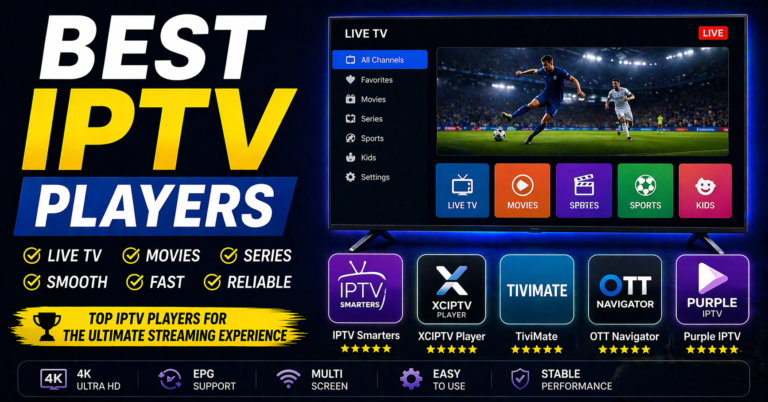
The 7 IPTV Players for Windows Worth Your Time in 2026
Not every player on this list suits every use case. A reseller distributing to family subscribers needs different defaults than a power user running four streams simultaneously. Context matters.
1. VLC Media Player
Still the most-used IPTV player for Windows globally, and for practical reasons. VLC handles M3U playlists natively, supports both UDP and HLS streams, and runs on machines that would struggle with heavier alternatives. Its network caching is manually configurable — a feature most consumer-facing players hide behind “auto” settings that don’t suit live TV.
The weakness: VLC’s EPG integration is poor out of the box. For end users who want a proper TV guide, it requires workarounds most won’t figure out alone.
Best for: Tech-comfortable users, resellers who control their own M3U endpoints.
2. IPTV Smarters Pro (Windows Desktop)
Originally built for Android, the Windows port of IPTV Smarters has become a serious option for resellers because it uses Xtream Codes API natively. This means clients authenticate directly against your panel credentials rather than pasting raw M3U links — a security and control advantage that matters when you’re trying to manage access and prevent link sharing.
The UI is consumer-friendly enough that non-technical family subscribers can navigate it without handholding. For resellers building a semi-managed client base, that support overhead reduction is real.
Pro Tip: When onboarding clients using IPTV Smarters on Windows, always set them up with Xtream Codes login rather than M3U URL. If you ever need to rotate endpoints due to ISP blocking, you update the panel — not 200 individual client configs.
Best for: Resellers running Xtream Codes / XtreamUI panels with active subscriber bases.
3. Kodi with PVR IPTV Simple Client
Kodi is not an IPTV player for Windows in the traditional sense — it’s a media centre that becomes one through the PVR IPTV Simple Client add-on. The distinction is worth understanding: Kodi caches differently, handles EPG more robustly, and allows customisation that no standalone IPTV player for Windows can match.
The trade-off is setup complexity. Getting Kodi properly configured — correct input stream adaptive settings, EPG URL mapped, hardware acceleration enabled — takes longer than any other option here. Clients who aren’t technically minded will struggle without a setup guide.
| Feature | Kodi + PVR | IPTV Smarters | VLC |
|---|---|---|---|
| EPG Support | Excellent | Good | Poor |
| Xtream API | Via add-on | Native | None |
| Setup Difficulty | High | Low | Medium |
| Hardware Decode | Full control | Limited | Good |
| Multi-stream | Yes | Yes | Manual |
| ISP Block Resistance | Add-on dependent | Moderate | Moderate |
Best for: Advanced users willing to configure; resellers building a premium tier offering.
4. TiviMate (via Android Emulator on Windows)
A brief but important mention: TiviMate is technically Android-only, but a growing number of Windows IPTV users run it via BlueStacks or LDPlayer emulation. The player’s EPG handling, catch-up TV support, and multi-panel management are genuinely superior to anything natively built for Windows.
If you’re recommending this route to clients, be honest about the overhead — emulators consume more RAM and have occasional compatibility issues. But for advanced users who already know their way around their machine, TiviMate in emulation often outperforms every native IPTV player for Windows option available.
Best for: Power users, multi-panel resellers managing personal setups.
5. GSE Smart IPTV
Less discussed than VLC or Smarters, GSE Smart IPTV has a Windows desktop version that handles both M3U and Xtream Codes. Its standout feature is multi-screen support — running four streams in a split layout without requiring separate window management. For sports households watching different matches simultaneously, this is a real differentiator.
Performance on low-spec systems is weaker than VLC, but on mid-range Windows machines (i5, 8GB RAM minimum), it runs without issue.
Pro Tip: GSE’s external player integration lets you offload particularly demanding 4K streams to VLC while keeping your channel list and EPG inside GSE. Use this when clients report buffering on 4K content — it’s often a decoder issue, not a stream quality issue.
Best for: Households streaming multiple channels simultaneously.
6. Simple TV (SimpleTV)
An older option that remains relevant specifically because of its UDP multicast support. If your panel provider delivers any channels via UDP rather than HLS, SimpleTV is one of the few IPTV players for Windows that handles this reliably. Most modern panels have shifted away from UDP, but legacy setups and certain European providers still use it.
Not a first recommendation for new resellers, but worth knowing exists.
Best for: Niche scenarios involving UDP stream delivery.
7. OTT Navigator (Windows via Emulation)
Similar to TiviMate in its Android-origin, OTT Navigator via emulation is worth flagging for resellers whose clients want Stalker Portal / MAG device-style authentication on Windows. OTT Navigator handles portal URLs natively — a capability that most Windows-native IPTV players don’t support cleanly.
If your panel infrastructure supports MAG emulation or Stalker Portal authentication, and you have clients who prefer this login method, OTT Navigator fills a gap nothing else on this list does.
Best for: Resellers running Stalker Portal authentication alongside Xtream Codes.
What ISP Blocking Does to Windows IPTV Setups in 2026
This deserves direct attention because it’s changed significantly. AI-driven deep packet inspection now identifies IPTV traffic patterns — specific HLS request intervals, segment sizes, header signatures — with enough accuracy that passive use without any obfuscation layer is increasingly unreliable in certain regions.
For UK users specifically, ISP-level blocking has expanded through court orders that compel major providers to block known IPTV CDN endpoints during live sports windows. The blocks are time-limited but frequent.
What this means for Windows IPTV users:
- Players that support custom DNS configuration (VLC, Kodi) give users more control
- A VPN layer running on Windows system-level (not inside the player) provides the most consistent protection
- Resellers should maintain at least two backup stream endpoints per channel bouquet — clients whose streams drop during ISP blocking windows will churn immediately if there’s no recovery path
Pro Tip: Don’t recommend player-level VPN integrations to clients. They rarely work reliably for live HLS. Instead, set up a system-level VPN profile on Windows, test it against your panel, and provide clients a simple guide. This keeps the player layer clean and the protection layer separate.
The best IPTV player for Windows is only as good as the connection reaching it.
Panel Configuration Mistakes That Break Any IPTV Player for Windows
Resellers focus heavily on which IPTV player for Windows to recommend, and underweight the panel-side configuration errors that make every player look bad.
The most common issues:
- Stream output set too high for the average client’s connection. A 25Mbps stream pushed to a client on a 30Mbps home connection leaves no headroom for any other household traffic. Buffer accordingly — 8–15Mbps per stream is the sustainable range for most residential setups.
- No backup uplink servers configured. When your primary CDN node goes down — and it will — clients with no automatic failover watch a frozen screen while you scramble. Panels with backup uplink configuration switch transparently. This is non-negotiable infrastructure.
- Simultaneous connection limits set incorrectly. A family household running two TVs, a Windows PC, and a phone will hit a 2-connection limit immediately. Setting this correctly at the point of sale prevents a category of support requests entirely.
- EPG not mapped to stream UIDs. Clients using any serious IPTV player for Windows will expect EPG to work. If your panel’s EPG XML doesn’t map correctly to channel IDs, the guide shows empty or mismatched — and clients perceive it as the player failing, not the panel.
How to Configure Any IPTV Player for Windows for Maximum Reliability
Regardless of which player you or your clients use, these configurations apply universally:
Buffer settings: Set cache to a minimum of 5,000ms for live TV. Most players default to 1,500ms, which is designed for VOD content and performs poorly on live streams with any packet variance.
Hardware acceleration: Enable DXVA2 or D3D11 (depending on player support) on Windows machines with dedicated or integrated GPU. This offloads video decoding from CPU, reducing freeze risk on demanding streams.
DNS configuration: Default ISP DNS increasingly participates in blocking. Switch to a neutral resolver (configure at adapter level in Windows network settings, not inside the player) for cleaner resolution of IPTV-related domains.
Reconnect behaviour: Any IPTV player for Windows worth using should have automatic reconnect enabled. Check this setting explicitly — some players require it to be toggled manually and ship with it off.
Pro Tip: For clients reporting intermittent freezing that clears after 2–3 seconds without requiring a manual channel change, the issue is almost always buffer underrun, not stream quality. Increasing cache solves it without any server-side changes. This single config fix eliminates roughly 30% of typical UK IPTV reseller support tickets.
Success Checklist for Resellers Recommending an IPTV Player for Windows
Before you recommend any player:
- Test it personally against your own panel endpoints
- Verify Xtream Codes or M3U integration works without manual workarounds
- Confirm hardware decoding works on the player version you’re distributing
- Check buffer/cache settings are accessible and configurable
When onboarding clients:
- Provide a written setup guide specific to that player — not a generic link
- Use Xtream Codes login wherever possible (avoids link-sharing and simplifies endpoint rotation)
- Set connection limits correctly at panel level before issuing credentials
- Confirm EPG is loading and mapping correctly on their specific setup
Ongoing reseller infrastructure:
- Maintain at least one backup uplink server active at all times
- Monitor stream quality metrics weekly, not reactively
- Have a documented response plan for ISP blocking events (backup endpoints, DNS instructions, VPN guidance)
- Collect client feedback by player type — pattern recognition across 50+ clients will show you which IPTV player for Windows generates the least support overhead
The best IPTV player for Windows isn’t the most feature-rich one. It’s the one that runs quietly in the background, recovers from interruptions without a phone call to you, and makes your clients feel like the service just works. Everything else is noise.